Work Reports
Contents
Work reports enable the monitoring of the hours that resources dedicate to the tasks to which they are assigned.
The program allows users to configure new forms for entering dedicated hours, specifying the fields that they want to appear in these forms. This allows for the incorporation of reports from tasks carried out by workers and the monitoring of worker activity.
Before users can add entries for resources, they must define at least one work report type. This type defines the structure of the report, including all the rows that are added to it. Users can create as many work report types as necessary within the system.
Work Report Types
A work report consists of a series of fields that are common to the entire report and a set of work report lines with specific values for the fields defined in each row. For example, resources and tasks are common to all reports. However, there can be other new fields, such as "incidents," which are not required in all report types.
Users can configure different work report types so that a company can design its reports to meet its specific needs:
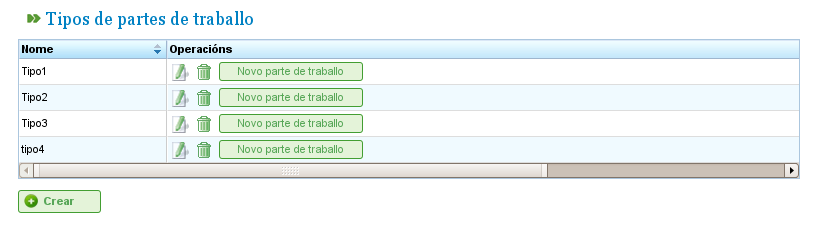
Work Report Types
The administration of work report types allows users to configure these types and add new text fields or optional tags. In the first tab for editing work report types, it is possible to configure the type for the mandatory attributes (whether they apply to the whole report or are specified at the line level) and add new optional fields.
The mandatory fields that must appear in all work reports are as follows:
- Name and Code: Identification fields for the name of the work report type and its code.
- Date: Field for the date of the report.
- Resource: Worker or machine appearing on the report or work report line.
- Project Element: Code for the project element to which the performed work is attributed.
- Hour Management: Determines the hour attribution policy to be used, which can be:
- According to Assigned Hours: Hours are attributed based on the assigned hours.
- According to Start and Finish Times: Hours are calculated based on the start and finish times.
- According to the Number of Hours and Start and Finish Range: Discrepancies are allowed, and the number of hours takes priority.
Users can add new fields to the reports:
- Tag Type: Users can request the system to display a tag when completing the work report. For example, the client tag type, if the user wishes to enter the client for whom the work was carried out in each report.
- Free Fields: Fields where text can be entered freely in the work report.
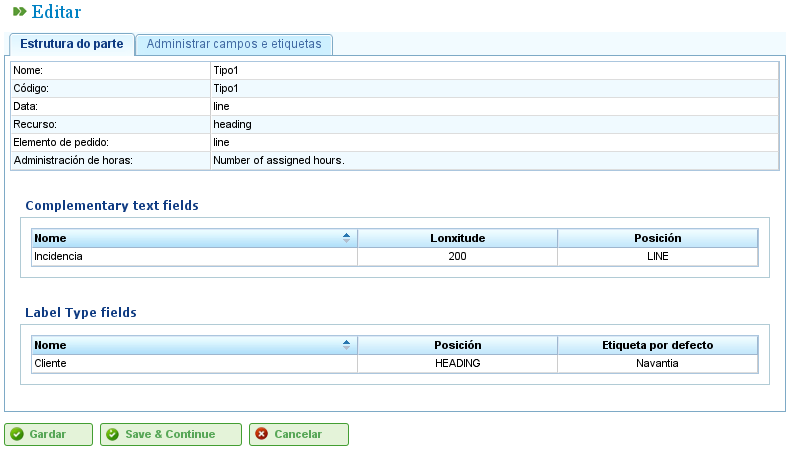
Creating a Work Report Type with Personalized Fields
Users can configure date, resource, and project element fields to appear in the header of the report, which means they apply to the entire report, or they can be added to each of the rows.
Finally, new additional text fields or tags can be added to the existing ones, in the work report header or in each line, by using the "Additional text" and "Tag type" fields, respectively. Users can configure the order in which these elements are to be entered in the "Management of additional fields and tags" tab.
Work Report List
Once the format of the reports to be incorporated into the system has been configured, users can enter the details in the created form according to the structure defined in the corresponding work report type. To do this, users need to follow these steps:
- Click the "New work report" button associated with the desired report from the list of work report types.
- The program then displays the report based on the configurations given for the type. See the following image.
Structure of the Work Report Based on Type
- Select all the fields shown for the report:
- Resource: If the header has been chosen, the resource is only shown once. Alternatively, for each line of the report, it is necessary to choose a resource.
- Task Code: Code of the task to which the work report is being assigned. Similar to the rest of the fields, if the field is in the header, the value is entered once or as many times as necessary on the lines of the report.
- Date: Date of the report or each line, depending on whether the header or line is configured.
- Number of Hours: The number of work hours in the project.
- Start and Finish Times: Start and finish times for the work in order to calculate definitive work hours. This field only appears in the case of the hour assignment policies, "According to Start and Finish Times" and "According to the Number of Hours and Start and Finish Range."
- Type of Hours: Enables users to choose the type of hour, e.g., "Normal," "Extraordinary," etc.
- Click "Save" or "Save and continue."