User Management
Contents
Managing Users
LibrePlan's system allows administrators to manage user profiles, authorizations, and users. Users are assigned to user profiles, which can have a series of predefined roles that grant access to the program's features. Roles are defined authorizations within LibrePlan. Examples of roles include:
- Administration: A role that must be assigned to administrators to enable them to perform administrative operations.
- Web Service Reader: A role required for users to consult the program's web services.
- Web Service Writer: A role required for users to write data via the program's web services.
Roles are predefined within the system. A user profile consists of one or more roles. Users must have specific roles to perform certain operations.
Users can be assigned one or more profiles, or one or more roles directly, allowing for specific or generic authorization to be granted.
To manage users, follow these steps:
- Go to "Manage users" in the "Administration" menu.
- The program displays a form with a list of users.
- Click the edit button for the desired user or click the "Create" button.
- A form will appear with the following fields:
- User Name: The user's login name.
- Password: The user's password.
- Authorized/Unauthorized: A setting to enable or disable the user's account.
- Email: The user's email address.
- List of Associated Roles: To add a new role, users must search for a role in the selection list and click "Assign."
- List of Associated Profiles: To add a new profile, users must search for a profile in the selection list and click "Assign."
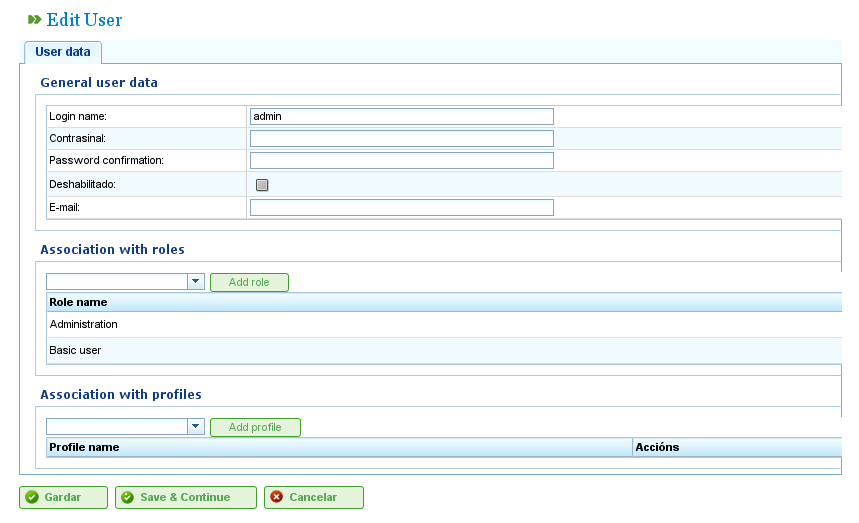
Managing Users
- Click "Save" or "Save and continue."
Managing Profiles
To manage the program's profiles, users must follow these steps:
- Go to "Manage user profiles" in the "Administration" menu.
- The program displays a list of profiles.
- Click the edit button for the desired profile or click "Create."
- A form appears in the program with the following fields:
- Name: The name of the user profile.
- List of Roles (Authorizations): To add a role to the profile, users must select a role from the role list and click "Add."
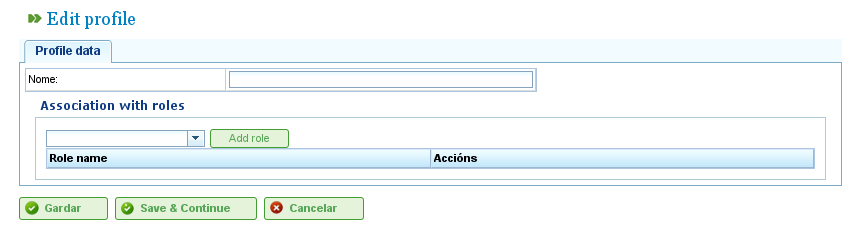
Managing User Profiles
- Click "Save" or "Save and continue," and the system will store the created or modified profile.